Notices
Introduction
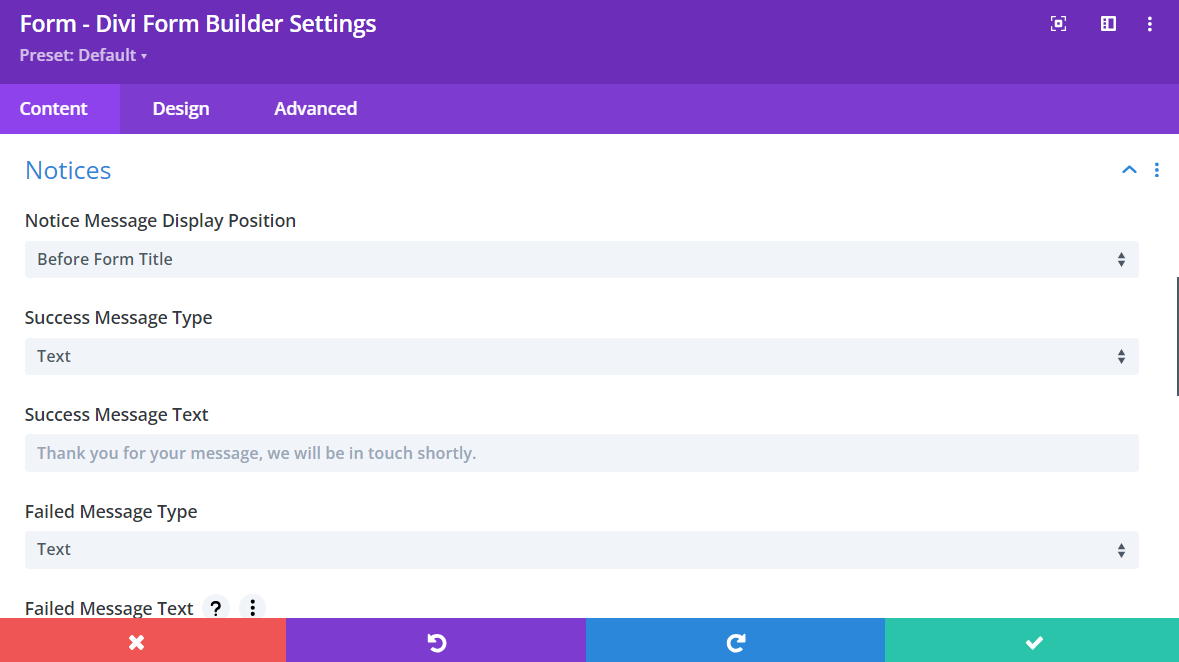
Use Notices to show clear feedback after form submit. You can control where success/error messages appear and what content they show.
Video
info
Access Notices in the Content tab of the Form Settings.
Notice settings
- Notices Message Display Position
- Before Form Title
- After Form Title
- Before Submit Button
- After Submit Button
- Success Message Type
- Text: write your success message directly
- Divi Library Layout: show a saved Divi Library layout
- Failed Message Type
- Text: write your failed-submit message directly
- Divi Library Layout: show a saved Divi Library layout
- URL Validation Error Message
- custom message shown when URL field validation fails
Add a PDF download link to the success notice
When PDF Generator is enabled, you can show a direct PDF download link in the success notice.
Required setup
- Enable PDF Generator on the form.
- Enable the PDF download-link option in PDF settings.
- In the success message content, include:
%%pdf_download_link%%.
Example success message text
Thanks for your submission. Download your PDF: %%pdf_download_link%%
If you do not include the merge tag in your message content, the link cannot be shown in text-based notices.
See full setup in PDF Generator.
Best practices
- Keep success messages short and action-focused.
- Include next-step actions (download, check email, continue to another page).
- Test both success and failed flows with real submissions.
What's Next
- PDF Generator - Configure templates, merge tags, and delivery options
- Email notification - Send admin/internal emails after submit
- Email confirmation - Send submitter auto-reply emails