Adding and Customizing the Number Input Field in Divi Form Builder
The Number Input Field in Divi Form Builder is a field that allows users to input numbers into your form. This guide will walk you through the steps to add and customize the Number Input Field for your forms.
Video
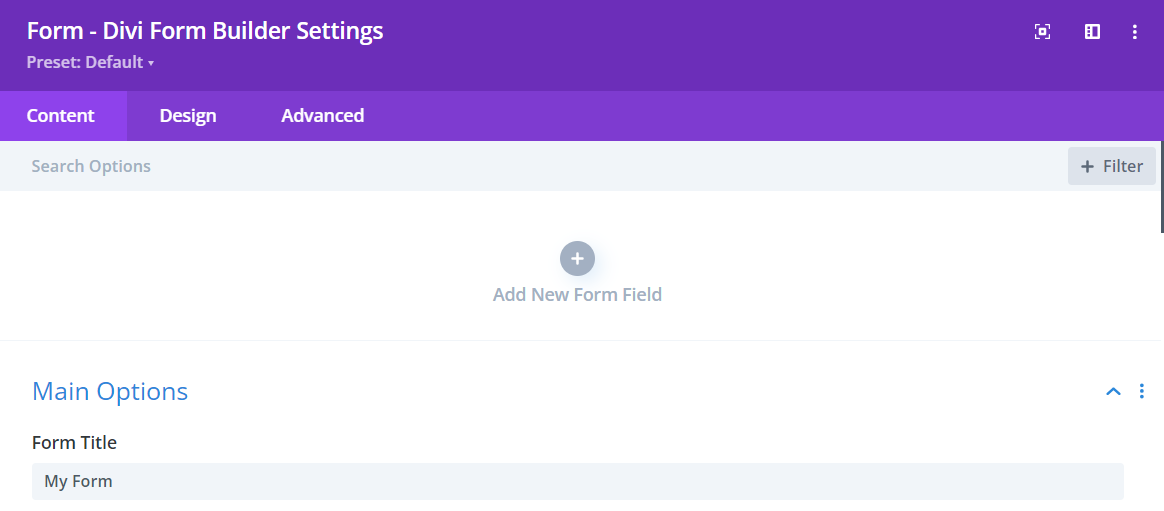
Step 1: Add Form Field
- Navigate to the page with your form and open the
Form Builder module. - Click on the
Add New Fieldbutton to start adding a new form field.
Step 2: Select Number Input Field
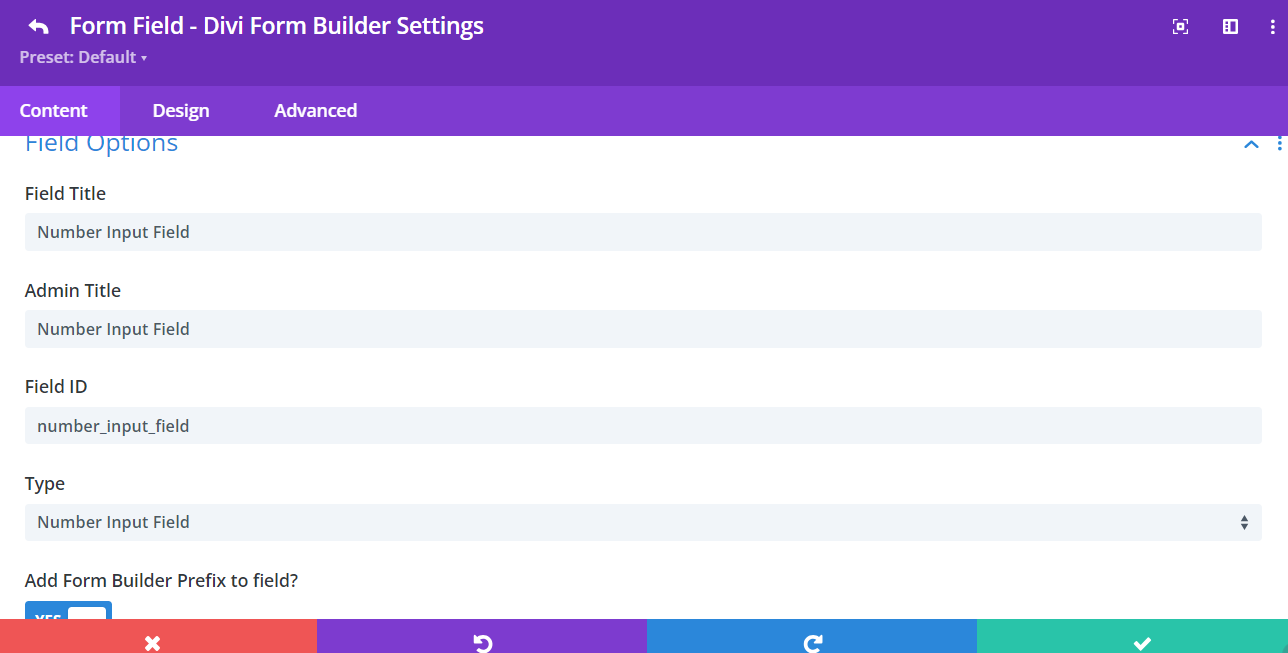
- Enter a descriptive
Field Titlefor the field that users will see. - Enter an
Admin Titlefor administrative purposes to help identify the field. - Assign a unique
Field IDto the field for data handling. - Select
Number Input Fieldfrom the Type dropdown menu.
Step 3: Customize Number Input Field
In addition to the styling features in the Design Tab, Divi Form Builder offers customization options for the Number Input Field HERE.
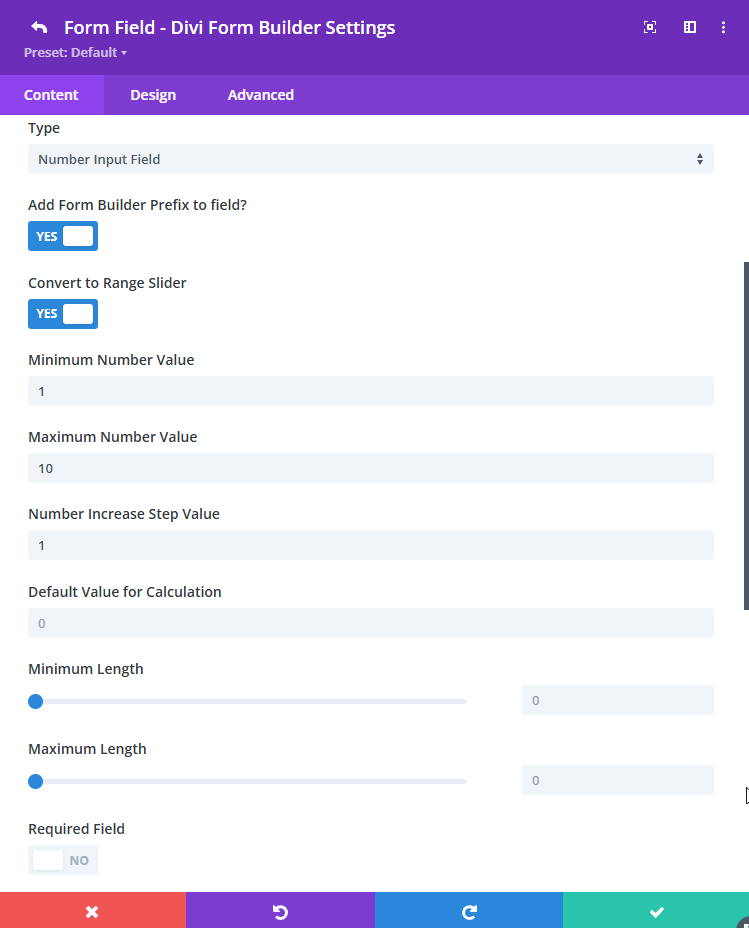
Field Options:
Add Form Builder Prefix to Field: Disable this option to directly input the field ID and Name. Only disable this option for specific cases, such as when using the form with Google Tag Manager.Convert to Range Slider: Enable this option to convert the number input into a range slider interface.Minimum Number Value: Set the minimum value that can be entered.Maximum Number Value: Set the maximum value that can be entered.Number Increase Step Value: Define the step value for number increments.noteYou can use decimal values for more precise increments, such as
0.1or0.25.Minimum Length: Specify the minimum number of digits required.Maximum Length: Specify the maximum number of digits allowed.Required: Make the field mandatory for users to fill out.
Convert to Range Slider
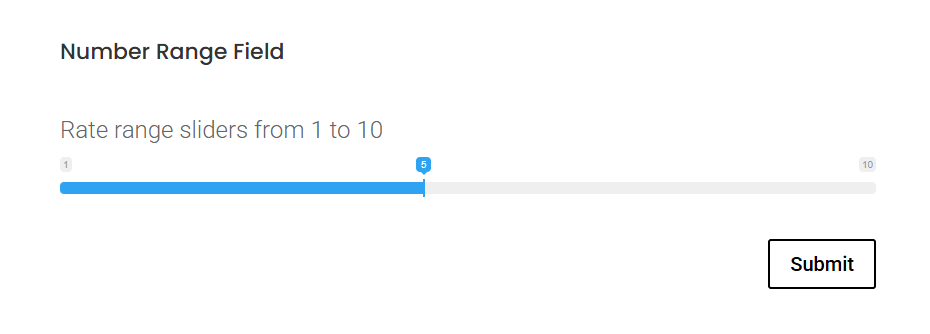
The Number Input Field can also be displayed as a range slider, allowing users to select a numeric value by sliding a handle.
To enable this:
- Locate the
Display as Range Slidertoggle in the Number Input Field settings. - Enable the toggle to convert the field into a slider.
- Adjust the following settings to control the slider behavior:
Minimum Number Value: Sets the start of the slider.Maximum Number Value: Sets the end of the slider.Number Increase Step Value: Sets the jump interval between values.Show Value on Slider: Optionally display the numeric value above the slider.
Design Settings
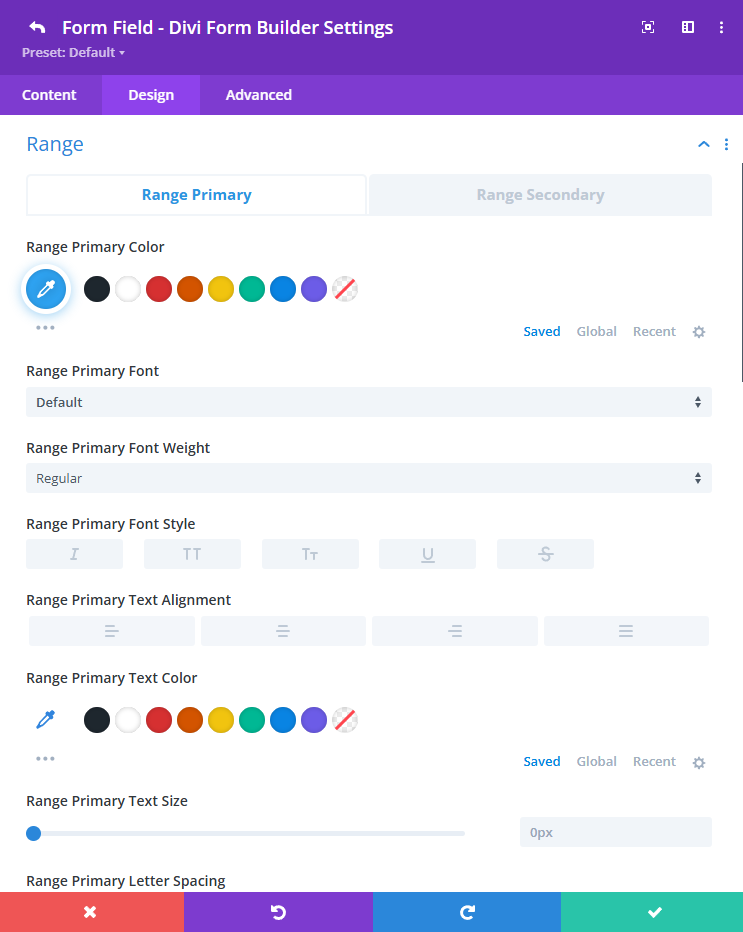
Additional design controls for the Number Input Field (including when used as a range slider) are available under the Design Tab.
You can style:
- Font, color, spacing, and alignment of the input or slider
- The appearance of the slider handle and track (when using range slider)
- Responsive spacing and alignment for better mobile display
Additional Tips
By following these steps, you can effectively add and customize the Number Input Field in Divi Form Builder, whether you're using it as a standard input or a range slider. Utilize the Design Tab for further styling and remember to set decimal step values when needed for precision.