Login Form
Building a login form
Use the Form module in the Visual Builder to build a frontend login form that uses WordPress user fields and, optionally, ACF user meta.
When to use this form type
Use Login Form when you want users to sign in from a custom frontend page instead of the default WordPress login screen.
Prerequisites
- Divi Form Builder active
- A page built with the Visual Builder
- A protected area or redirect target for logged-in users
Step 1: Add the Form module
- Open the page in the Visual Builder.
- Insert the Form module where the login form should appear.
Step 2: Define form settings
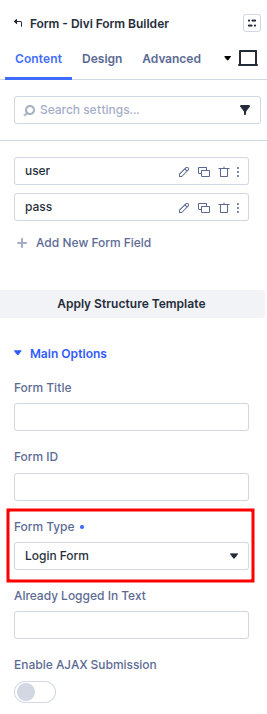
- Select the Form module and open the Content tab.
- Set Form Title. A unique Form ID is optional. Leave it blank and Form Builder assigns one. If you set one, use an ID that is not already used by another form.
- Set Form Type to the Login option.
- Set Submit Button Text (e.g. "Log In").
Step 3: Plan your fields
Login forms typically use:
- WordPress user fields — at least Login Name (or Email) and Password.
- ACF user fields — optional; add and map if you use ACF for user meta.
Include at least Login Name and Password.
note
For password options (e.g. show/hide, remember me), see the Form module Content tab field options and the Field types index.
Step 4: Add form fields
- In the Content tab, add fields with Add New Form Field.
- For each field set Field Title, Admin Title, and Field Type (e.g. Input for login name, Password for password). A unique Field ID is optional. Leave it blank and Form Builder assigns one. If you set one, use an ID that is not already used by another field on the form.
See Field types for all types.
Step 5: Map fields
- For WordPress user fields: set Field Mapping Type to User Field (Register/Login Form Only) and select the user field (Login Name, Password, etc.).
- For ACF user meta: set Field Mapping Type to User Meta Field (Register/Login Form Only) and enter the meta field name.
Ensure Login Name and Password are mapped.
Step 6: Customize the form
Use the Content and Design tabs for redirect after login, messages, and styling. Some options (e.g. email notifications) do not apply to Login forms.
Verify it works
- Test with a valid existing user account.
- Confirm login succeeds and redirect behavior is correct.
- Test with invalid credentials to confirm the user sees the expected error message.
- Confirm already-logged-in behavior is correct (for example, notice text or redirect).
Common setup mistakes
- Missing Password mapping
- Incorrect field mapping type for login-related fields
- Testing with an account that does not have expected permissions
- Configuring options that are not relevant to login workflows