Subscription Management
Purpose and when to use
Subscription management covers both the WordPress admin view of subscriptions and the member account actions (renew, cancel, resubscribe, switch plan). Use the admin to view trial status, cancel or refund memberships, and support members; use the account so members can self-serve.
Subscriptions list in admin
- Go to Divi Membership → Subscriptions.
- You see a list of all subscriptions: Email, Start Date, Membership Plan, Billing Cycle, Status, and Payment Method.
- Statuses include Active, Trialing, Pending payment, Failed, Expired, and cancelled states. Trial and payment dates appear in the subscription details.
Click into any subscription to see full details, transaction history, and available actions.
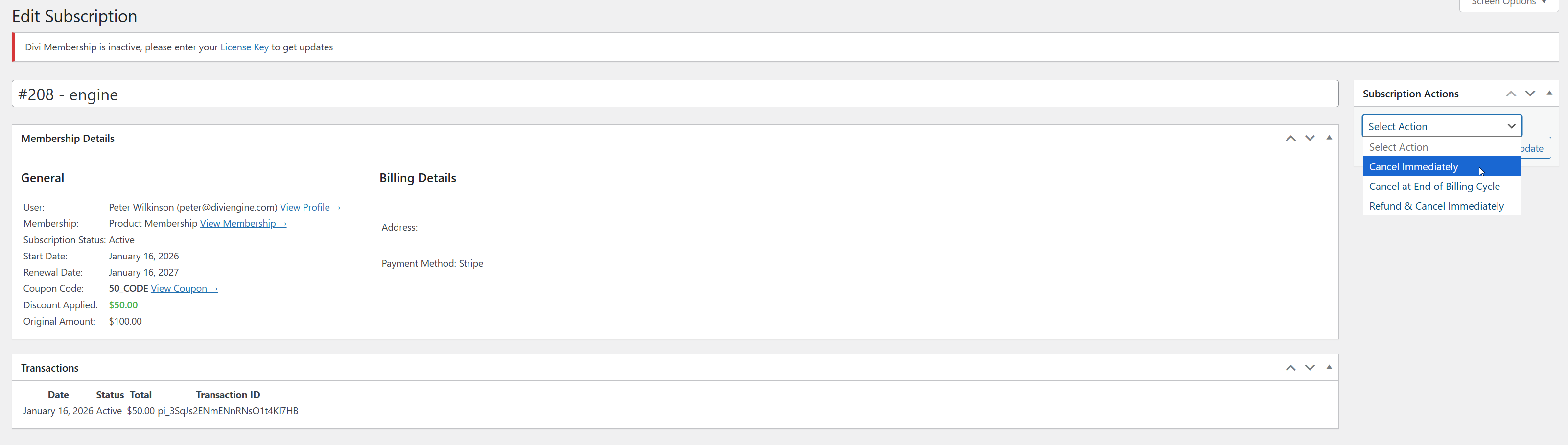
Where to find Subscription Actions
The Subscription Actions box is in the right sidebar of the Edit Subscription screen (not in the main content with Membership Details and Transactions). If you don’t see it:
- Look for the Subscription Actions panel on the right side of the page.
- Use Screen Options (top right of the screen) and ensure Subscription Actions is checked so the sidebar box is visible.
Available actions depend on the status and payment method.
| Status | Available admin actions |
|---|---|
| Active | Cancel Immediately, Cancel at End of Billing Cycle, Refund & Cancel Immediately |
| Pending payment | Mark as paid or Reject payment for bank-transfer/offline checkout |
| Expired / Failed | Reactivate subscription (site only). This restores local access but does not restart a remote Stripe or PayPal agreement |
| Trialing | Trial dates and conversion state are visible; cancellation follows the trial/payment state |
Cancelling a subscription
On an individual subscription, open the Subscription Actions box in the right sidebar. In the dropdown choose Cancel Immediately or Cancel at End of Billing Cycle, then click Update to apply. Cancel immediately ends the membership right away; cancel at end of billing cycle keeps access until the current period ends.
Refunding a subscription
In the Subscription Actions box (right sidebar), choose Refund & Cancel Immediately from the dropdown and click Update to refund and cancel the membership immediately.
Bank transfer and pending payment
Bank transfer creates a Pending payment subscription. Protected content remains locked.
- Confirm the money has arrived outside the site.
- Open Divi Membership → Subscriptions and edit the pending subscription.
- Choose Mark as paid to activate access, or Reject payment to reject it.
The pending, completed, or rejected result is emailed to the member. A site-only reactivation should not be used as a substitute for marking an offline payment paid.
Reactivating failed or expired records
Reactivate subscription (site only) changes the local subscription record and restores local access. It does not recreate a cancelled Stripe or PayPal subscription and does not put a card on file. Confirm how future payment will be collected before using it.
Resubscribe and switch plan (member account)
Members can Resubscribe after cancelling (same flow as Renew) and Switch plan (upgrade/downgrade or same-plan cycle change) from their account membership page. See Account page for upgrade/downgrade and resubscribe behaviour.
Reports
Use Divi Engine → Divi Membership → Reports for current subscription, revenue, and trial analytics. Coupon analytics remain under Divi Membership → Reporting → Coupons.
What's Next
- Account page — Plan switcher, resubscribe, cancel modal, and card management.
- Reporting — Current and legacy report screens.
- Free trials — Configure trials and trial status in account and admin.