Divi Machine Settings
Configure Divi Machine from the shared Divi Engine React settings hub. This page covers the Settings sidebar sections plus Backup & restore. License activation lives under Installation.
Open Divi Machine settings
- In WordPress admin, go to Divi Engine → Divi Machine.
- In the left sidebar under Settings, open General (or another section below).
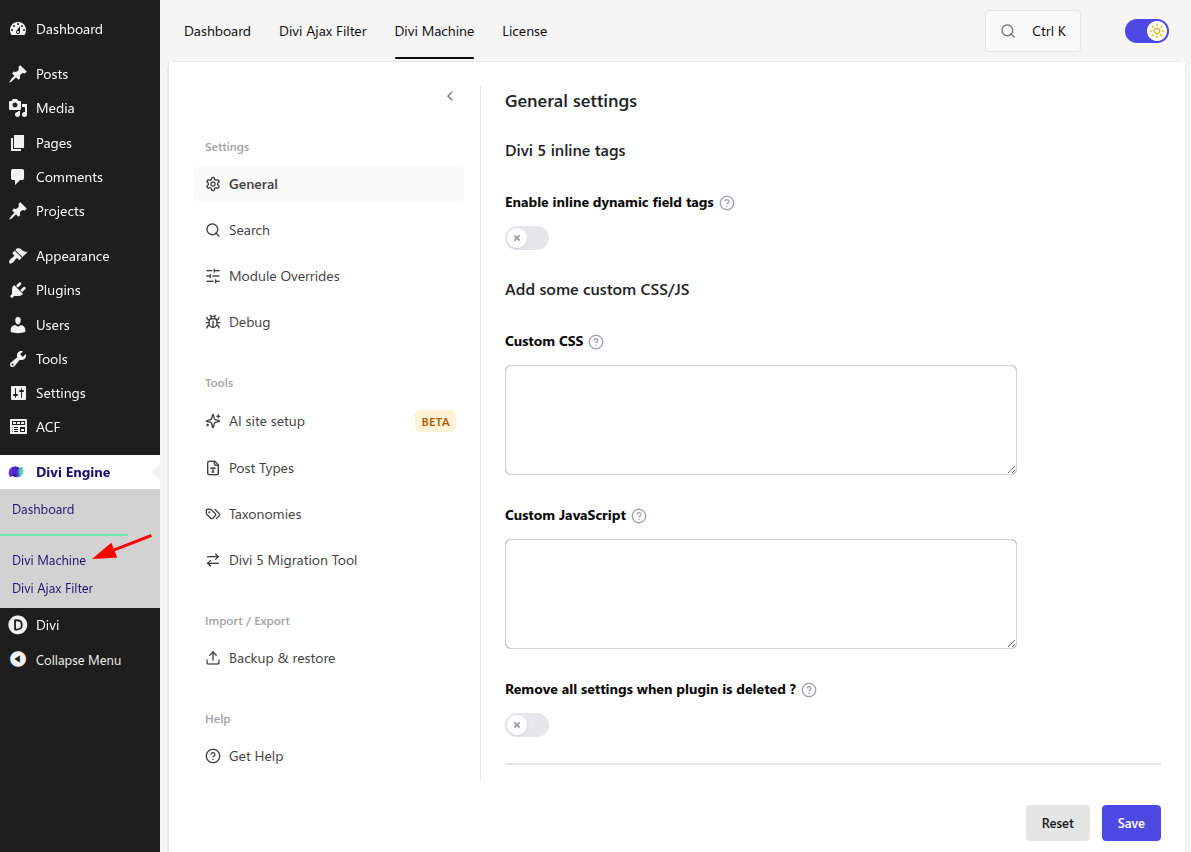
Sidebar map
| Group | Items |
|---|---|
| Settings | General, Search, Module Overrides, Debug |
| Tools | AI site setup, Post Types, Taxonomies, Divi 5 Migration Tool |
| Import / Export | Backup & restore |
| Help | Get Help |
Use Save at the bottom of General, Search, Module Overrides, and Debug after you change options.
General
Open Settings → General.
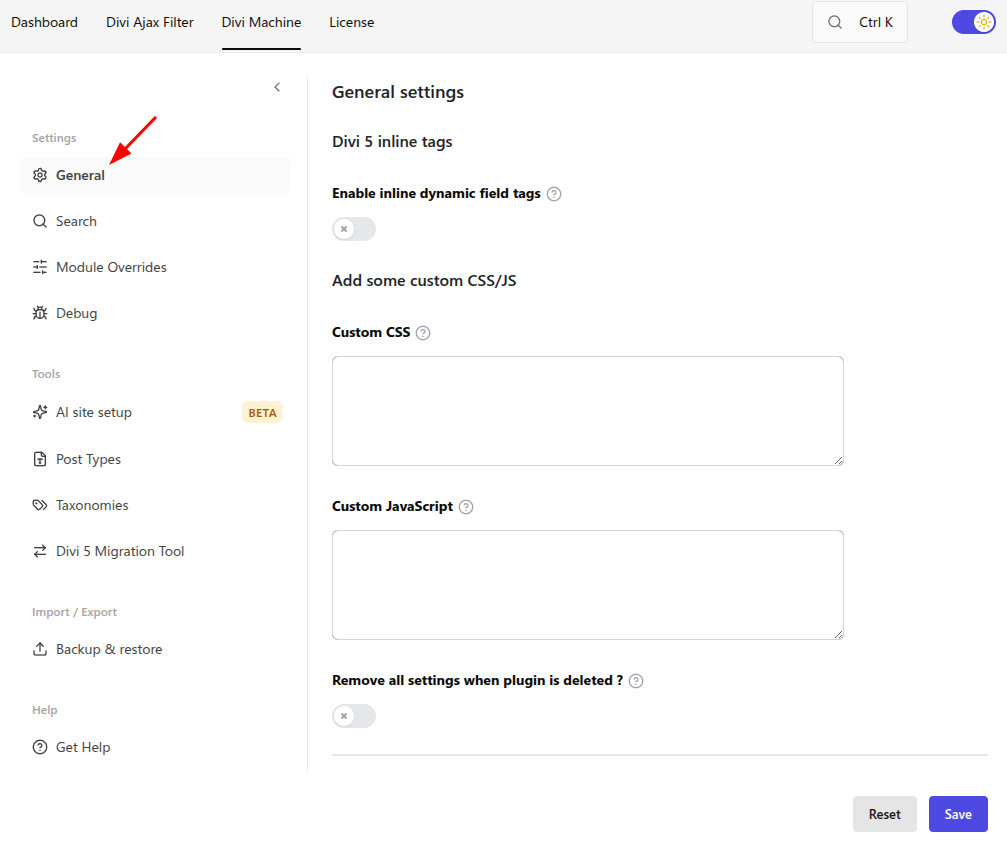
Divi 5 inline tags
Turn on Enable inline dynamic field tags to replace {dm:…} placeholders in module text on the front end. Full syntax and providers: Inline field tags.
Custom CSS and JavaScript
- Custom CSS — Rules only; do not wrap in
<style>tags. - Custom JavaScript — Additional scripts for Machine-related customizations.
These travel with your Machine options when you use Backup & restore.
Remove settings on delete
Turn on Remove all settings when plugin is deleted? if you want Machine to wipe its stored options when the plugin is deleted. Leave it off to keep options for reinstalls.
Search
Open Settings → Search.
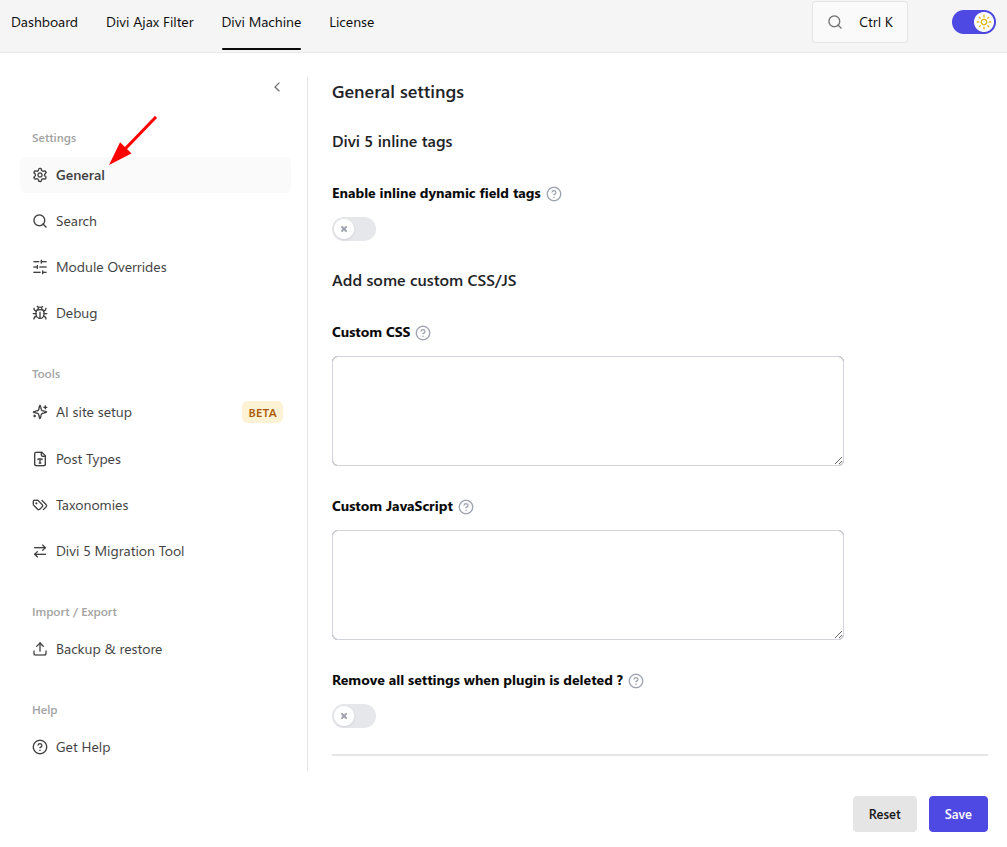
Use Divi Machine Search
Enable Use Divi Machine Search unless another search plugin should own site search. When enabled, configure:
- Search Post Common Fields — Content, Excerpt, Taxonomy, Comments (on/off per item).
- Search ACF Group — Include active ACF field groups in search (list is built from groups on the site).
Search Posts module (Divi 5)
- Allow live search for Search Posts modules — When on, each Search Posts module can show instant suggestions if live search is enabled on that module. Turn off to disable module live search site-wide without removing modules.
Live search on site search forms
Optional enhancement for Divi search modules and theme search forms (separate from Search Posts module live search):
- Enhance site search forms with live search
- Additional CSS selectors (one per line; leave empty to use forms with
role="search") - Include legacy theme search forms
- Exclude containers (one CSS selector per line)
- Maximum forms to enhance per page (1–20)
Disable a specific form with data-dmach-live-search="off" on the form or the search field.
Phrase indexing for Auto suggest is configured under Divi Engine → Divi Ajax Filter → Auto suggest. Full guides: Live search · Auto suggest.
Module Overrides
Open Settings → Module Overrides.
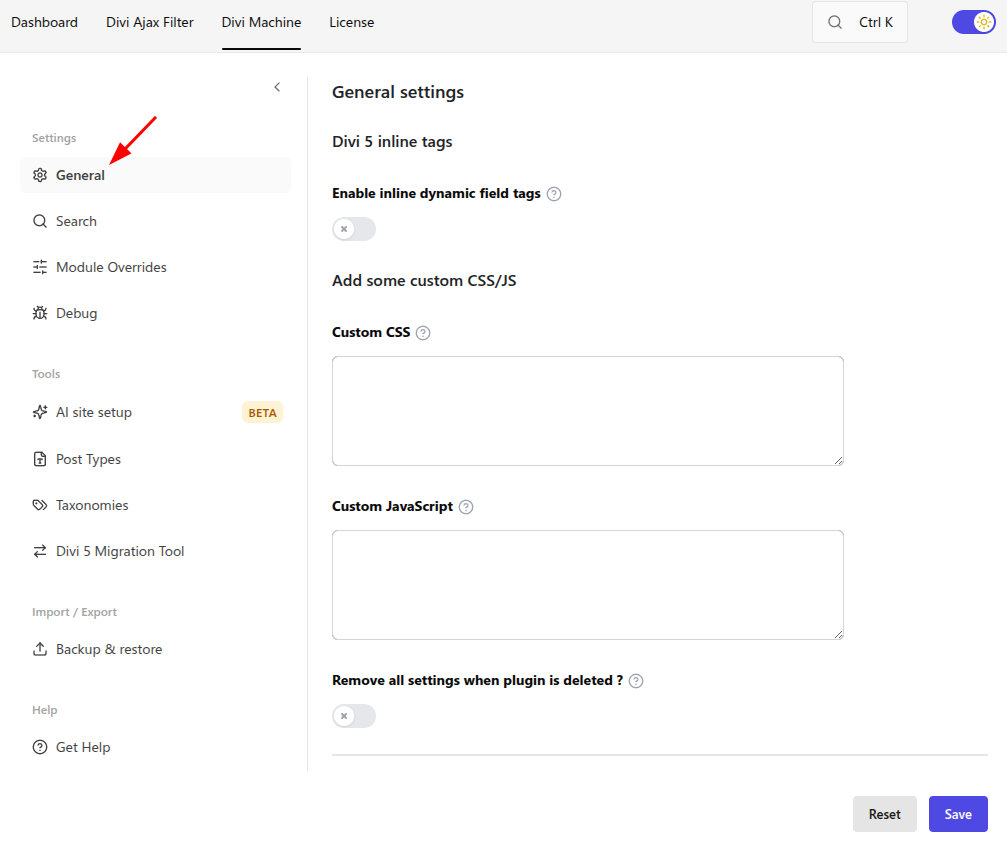
These options override classic Divi Map and Countdown modules with field-driven values from your custom post types.
Map module
- Choose Map Post Type, or enter a Map Post Type Slug (custom) if the type is not listed.
- Choose Map Module Override: ACF Item (Google Map field) for that post type.
Countdown module
- Choose Countdown Post Type, or enter a Countdown Post Type Slug (custom).
- Choose Countdown Module Override: ACF Item (date field) for that post type.
Debug
Open Settings → Debug.
Enable logging only while troubleshooting. Reproduce the issue, then copy or export logs for support.
| Setting | Notes |
|---|---|
| Enable debug logging | Turns on the file log viewer and AI site setup assistant log below. Save settings after changing this toggle. |
| Enable speed timing logs | Logs render/lookup timings for Custom Field Item and Gallery diagnostics. Use only while diagnosing slow pages. |
When debug logging is on:
- Divi Machine debug log file — File under
uploads/divi-machine/divi_machine_debug.logwith copy, export, delete, and write-test actions. - Loop and filter debug output may also appear in page HTML.
- AI site setup assistant log — After you generate or apply a plan in AI site setup, plan/apply details appear here. Use Refresh, Copy, Export, or Clear logs. Save with debug enabled before running the assistant so the server records entries.
Backup & restore
Open Import / Export → Backup & restore.
This backs up and restores Divi Machine plugin options (the same settings CSV format as the legacy Machine Settings screen). It does not export custom post type or taxonomy definitions from Post Types / Taxonomies.
Export settings
- Click Download.
- Save the CSV (filename like
divi-machine-settings-YYYY-MM-DD.csv).
Import settings
- Choose a CSV previously exported from Divi Machine.
- Click Import settings and confirm that you want to replace the saved options on this site.
- The page reloads so the form matches the imported values.
Import replaces the current Machine options on the site. Export a backup first if you need a rollback copy.
Related tools
These live under Tools in the same Divi Machine sidebar (documented separately):
- AI site setup (Beta) — Plan CPTs, taxonomies, and field groups from a brief
- Add/Edit Post Types — Register custom post types
- Add/Edit Taxonomies — Register taxonomies
- Divi 5 Migration Tool — Unify Machine shortcodes before Divi’s migrator
License and help
- License — Activate or manage your key under Installation → Activate the license (Divi Engine → License).
- Get Help — Open Help → Get Help in the Machine sidebar for documentation and support links.
What's Next
- AI site setup — Beta content planner
- Inline field tags —
{dm:…}tags under General - Divi 5 Migration Tool — Divi 4 → Divi 5 shortcode tool
- Add/Edit Post Types — CPT builder