Registration Form
This reference is for Divi 5. The same module exists in the Classic Builder. See Register module on Divi 4.
Purpose and when to use
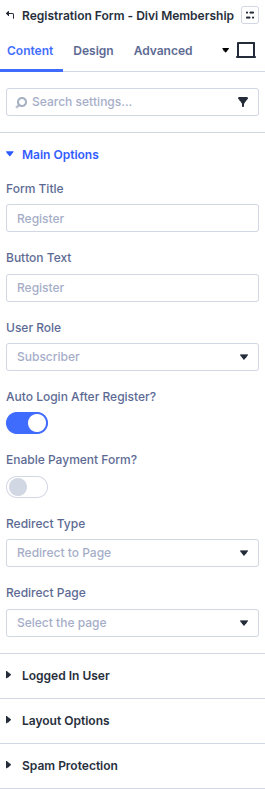
Registration Form (divi-membership/register) creates a WordPress user and can start a membership in one submit. Its Divi 5 module picker label is Registration Form. Use it for new visitors. People who already have an account should use Signup Form.
Add it from the Divi Membership folder in the Visual Builder.
Payment methods come from Divi Engine → Divi Membership → Payment Gateways: Stripe, PayPal, bank transfer, and WooCommerce checkout when WooCommerce is active. Free trials follow Free Trials and the billing cycle.
Before you configure this module
- At least one membership plan exists. See Adding a membership plan.
- Paid plans have a gateway turned on. See Payment Gateways.
- reCAPTCHA keys are saved under Spam Protection if you turn on Google reCAPTCHA here.
Quick setup
- Add Registration Form.
- Set Form Title (default Register) and Button Text (default Register).
- Choose User Role (default subscriber).
- Leave Auto Login after register? on if the new member should be signed in immediately.
- Turn on Enable Payment Form? when the plan is paid.
- Set Redirect Type to a thank-you page or the account page.
- Under Logged In User, choose what a signed-in visitor sees instead of the form.
Content tab
| Group | What it configures |
|---|---|
| Main Options | Title, button, role, auto login, payment form, redirect |
| Logged In User | Message, layout, or redirect when someone is already signed in |
| Plan and Payment Options | Plan field, order summary, coupons, payment layout, Stripe layout, failed-payment redirect. Shown when Enable Payment Form? is on |
| Layout Options | Title visibility, columns, labels, placeholders, profile address, billing address, company |
| Spam Protection | Honeypot and Google reCAPTCHA |
| Background / Link / Admin Label | Standard Divi groups |
Core settings
| Setting | Type | Default | Notes |
|---|---|---|---|
| Form Title | text | Register | Shown above the form when the title is enabled |
| Button Text | text | Register | Submit label |
| User Role | select | subscriber | Role given to the new user |
| Auto Login after register? | toggle | On | Redirect settings appear when this is on |
| Enable Payment Form? | toggle | Off | Plan picker, summary, coupons, and payment methods |
| Redirect Type | select | Redirect to Page | Page or URL after a successful registration |
| Logged In | select | Show Message | Default message: You are already logged in. |
| Membership Plan Field Style | select | Select | Select or Radio. Titles and cycle descriptions apply to Radio |
| Show Order Summary? | toggle | On | Plan, price, and discount |
| Enable Coupon Code Field? | toggle | Off | Default state is collapsed. Success message: Coupon applied successfully! |
| Payment Design | select | Button | Button or Radio |
| Payment Columns | select | 2 | How payment methods are laid out |
| Stripe Payment Method Mode | select | Advanced (All Methods) | Simple is cards only. Advanced can use Accordion or Tabs |
| Show Address Fields? (Profile Only) | toggle | Off | Saved on the user profile, separate from billing |
| Show Billing Address Fields? | toggle | Off | Use this when the gateway needs a billing address. Stripe’s default checkout does not |
| Add Honeypot CAPTCHA field? | toggle | On | Hidden field for bots |
| Add Google reCAPTCHA? | toggle | Off | Needs keys in Settings → Spam Protection |
Exclude Membership Plans takes comma-separated plan IDs. Leave it empty to show every plan.
Make Payment selection Required? defaults to on when the payment form is enabled.
Redirect Type for Failed Payment is under Plan and Payment Options. Use it when a card payment does not complete.
Design tab
| Group | What it configures |
|---|---|
| Typography | Form title, labels, plan intro, plan options, and prices, when those parts are visible |
| Fields | Input background, hover, focus, placeholder colours, field text, and field spacing |
| Register Button | Submit button styles and Button Alignment |
| Payment Design | Inactive, active, and hover colours for payment methods. Shown when the payment form is on |
| Order Summary Design | Summary type, background (#f8f9fc), row border (#e0e0e0), and total border (#333333) |
| Selected Plan Design | Alignment, background, title, and description of the chosen plan |
| Inputs / Inputs Focus / Form Field Wrapper / Whole Module | Borders |
| Sizing, spacing, border, box shadow, filters, animation, transform | Module chrome |
Payment, form fields, and the submit button each have their own spacing group when the payment form is on.
Advanced
Standard Divi groups: attributes, CSS, conditions, visibility, transition, position, and scroll. Membership visibility for any module is covered in Module conditions.