Signup Form
This reference is for Divi 5. The same module exists in the Classic Builder. See Signup module on Divi 4.
Purpose and when to use
Signup Form (divi-membership/signup-form) subscribes someone who already has a WordPress account. Its Divi 5 module picker label is Signup Form. It does not create the user. New visitors should use Registration Form.
Add it from the Divi Membership folder in the Visual Builder.
Saved cards can be offered when the member already has a Stripe customer. Payment methods are the ones enabled in Payment Gateways, including bank transfer and WooCommerce checkout when those are turned on.
Before you configure this module
- Plans and billing cycles exist.
- A paid plan has Stripe, PayPal, bank transfer, or WooCommerce checkout enabled.
- The visitor can already log in. Put a Login Form on the same page or send them to the login page first.
Quick setup
- Add Signup Form.
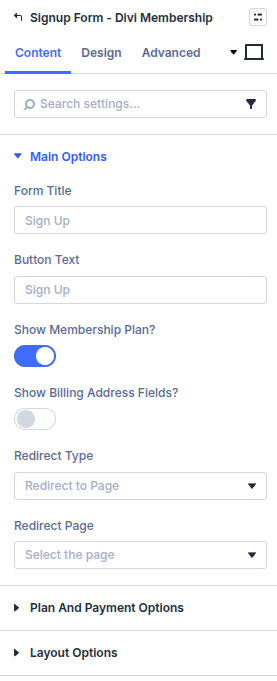
- Set Form Title (default Sign Up) and Button Text (default Sign Up).
- Leave Show Membership Plan? on so the visitor can pick a plan and pay.
- Set Redirect Type to a page or URL after signup.
- Leave Show Order Summary? on. Turn on Enable Coupon Code Field? if you sell with coupons.
Content tab
| Group | What it configures |
|---|---|
| Main Options | Title, button, plan visibility, billing address, redirect |
| Plan and Payment Options | Plan field, summary, coupons, payment layout, Stripe layout. Shown when Show Membership Plan? is on |
| Layout Options | Title, columns, labels, placeholders, company field |
| Background / Link / Admin Label | Standard Divi groups |
Core settings
| Setting | Type | Default | Notes |
|---|---|---|---|
| Form Title | text | Sign Up | Hidden when Enable Form Title? is off |
| Button Text | text | Sign Up | Submit label |
| Show Membership Plan? | toggle | On | Plan picker and payment. Off hides them and shows Membership Plan Custom Field |
| Membership Plan Custom Field | text | #membership_plan | CSS selector used when the plan dropdown is hidden |
| Show Billing Address Fields? | toggle | Off | Only while the plan picker is on |
| Redirect Type | select | Redirect to Page | Page or URL after signup |
| Membership Plan Field Style | select | Select | Select or Radio |
| Show Order Summary? | toggle | On | Plan, price, and discount |
| Enable Coupon Code Field? | toggle | Off | Collapsed by default |
| Payment Design | select | Button | Button or Radio |
| Stripe Payment Method Mode | select | Advanced (All Methods) | Simple is cards only |
| Enable Form Title? | toggle | On | |
| Form Columns | select | 1 | One or two columns |
| Enable Field Label? | toggle | On | |
| Show Company Field? | toggle | Off |
Exclude Membership Plans takes comma-separated plan IDs.
When only one plan and one billing cycle exist, the plan dropdown can stay hidden and the order summary still shows the price.
Design tab
The Design tab matches Registration Form: Typography, Fields, Sign Up Button (button styles and alignment), Payment Design, Order Summary Design, and Selected Plan Design. Those payment groups appear when Show Membership Plan? is on and the order summary group appears when the summary is on.
Borders cover Inputs, Inputs Focus, Form Field Wrapper, and the Whole Module.
Advanced
Standard Divi groups: attributes, CSS, conditions, visibility, transition, position, and scroll.