Settings Overview
Where to find settings
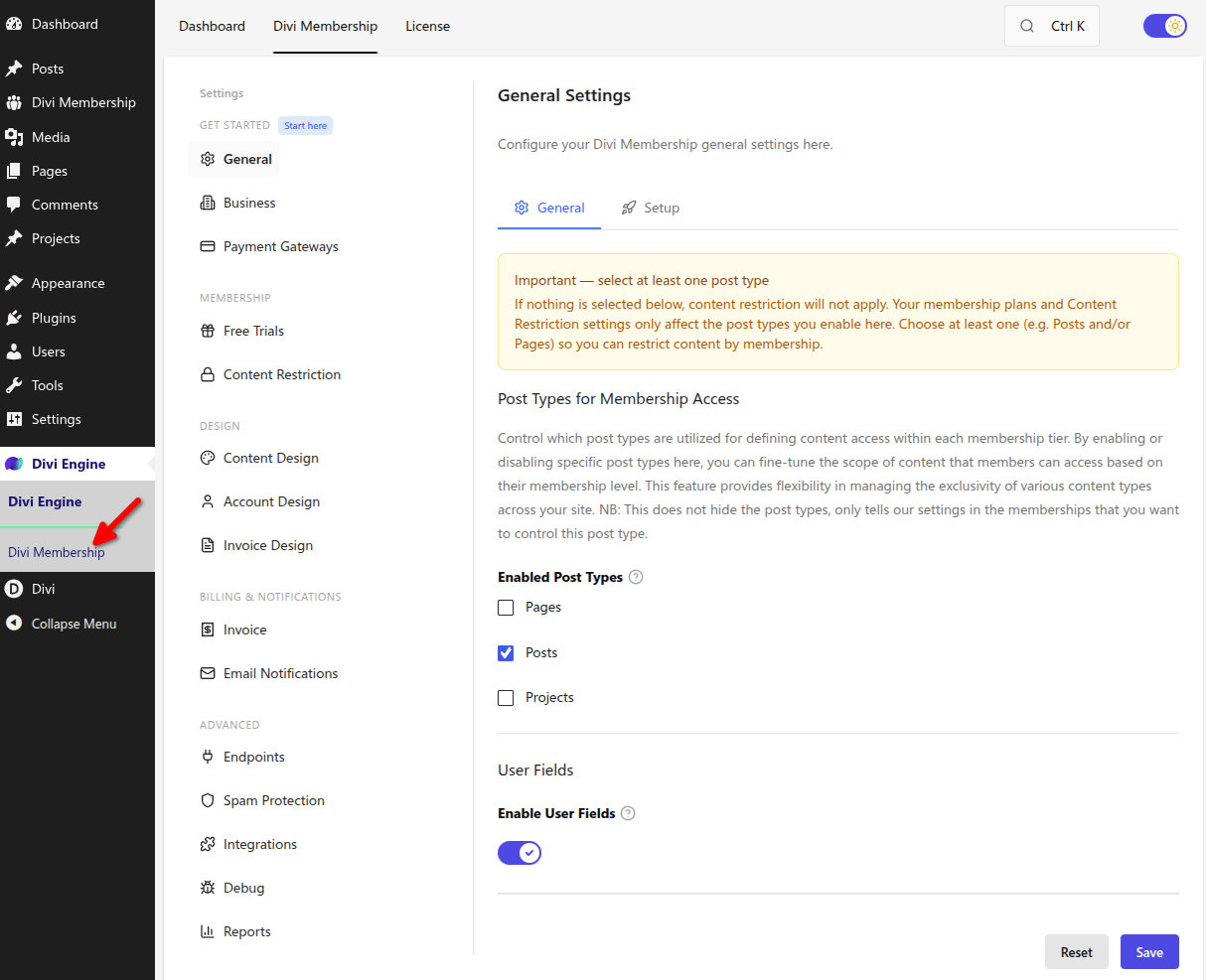
All plugin settings are in WordPress Admin → Divi Engine → Divi Membership. Click Divi Membership to open the settings page. The left-hand menu lists the sections (General, Business, Invoice, Payment Gateways, and so on). The license key is set under Divi Engine → License—all Divi Engine product licenses are managed there, not under Divi Membership settings.
Settings sections
The left-hand menu is grouped as Get started, Membership, Design, Billing & notifications, and Advanced. Sections appear in this order:
| Section | Purpose |
|---|---|
| General | Site-wide options: post types for membership access, user fields, setup actions. |
| Business | Business details used on invoices and in payment flows. |
| Payment Gateways | Stripe, PayPal, bank transfer, and optional WooCommerce checkout. |
| Free Trials | Global/per-plan mode, trial restrictions, reminders, and grace period. Per-plan length and payment collection are set on each recurring billing cycle. |
| Content Restriction | Role bypass and what visitors without access see on single posts, lists, archives, and loop modules. Participating post types are selected under General. |
| Content Design | Design of restriction notices and locked content. |
| Account Design | Tabs for member account: Navigation, Content, Tables, Inputs, Buttons. |
| Invoice Design | Styling and branding of invoices. |
| Invoice | Invoice generation, numbering, logo, labels, footer. |
| Email Notifications | Transactional emails (welcome, payment, trial, cancellation, etc.). |
| Endpoints | URL for the member account (e.g. /membership), login page, custom endpoints. |
| Spam Protection | reCAPTCHA and spam protection for registration and forms. |
| Integrations | Third-party integrations (e.g. Zapier). |
| Debug | Enable logging, inspect divi_membership_debug.log, and run membership relationship repair. |
| Reports | Under Advanced; opens the current Membership Reports page (overview, subscriptions, revenue, trials, and export). |
Payment Gateways: Stripe options
- Stripe (default) — Supports multiple payment methods (e.g. cards, Klarna, iDEAL, Revolut Pay). Billing address is not shown at checkout unless you switch to the older checkout mode.
- Stripe Legacy — Turn on Enable Stripe Legacy Mode in Payment Gateways when you need the older Stripe checkout (for example, to show the billing address at checkout). When Legacy is on, the billing address appears; when off, the default checkout is used.
- Bank transfer — Members see your payment instructions. Access stays locked until you mark the subscription paid. Validate Payment Gateway API Keys is hidden unless Stripe or PayPal is also enabled.
- WooCommerce — Optional, and only when WooCommerce is active. Members finish on your store checkout and pay with methods already enabled in WooCommerce, such as WooCommerce Payments. See WooCommerce.
Card management (add, remove, set default) is available in the member account for Stripe.
Reports
Divi Membership currently has two reporting screens:
- Divi Engine → Divi Membership → Reports — Current dashboard with overview metrics, charts and analytics, subscriptions, revenue, trial analytics, and CSV export.
- Divi Membership → Reporting — Legacy Revenue, Signups, and Coupons reports. Use its Coupons tab for coupon analytics and coupon CSV export.
See Reporting for the complete map.
What's Next
- Settings reference — Index of all settings docs; each section has its own page (General, Endpoints, Business, Invoice, Payment Gateways, etc.).
- Stripe and Payment Gateways — Set up Stripe or PayPal and validate your keys.
- Content Restriction — Configure which content is restricted and how it appears.
- Account page — Customize the member account with Account Design.
- Payment Gateways — Every payment and Stripe setting with defaults.