Protect Sections
Introduction
A Protect Section is where the hidden layout and the password form are configured. The Divi Protect module on a page only chooses which Protect Section to show. Create and edit sections under Divi Engine → Protect Sections.
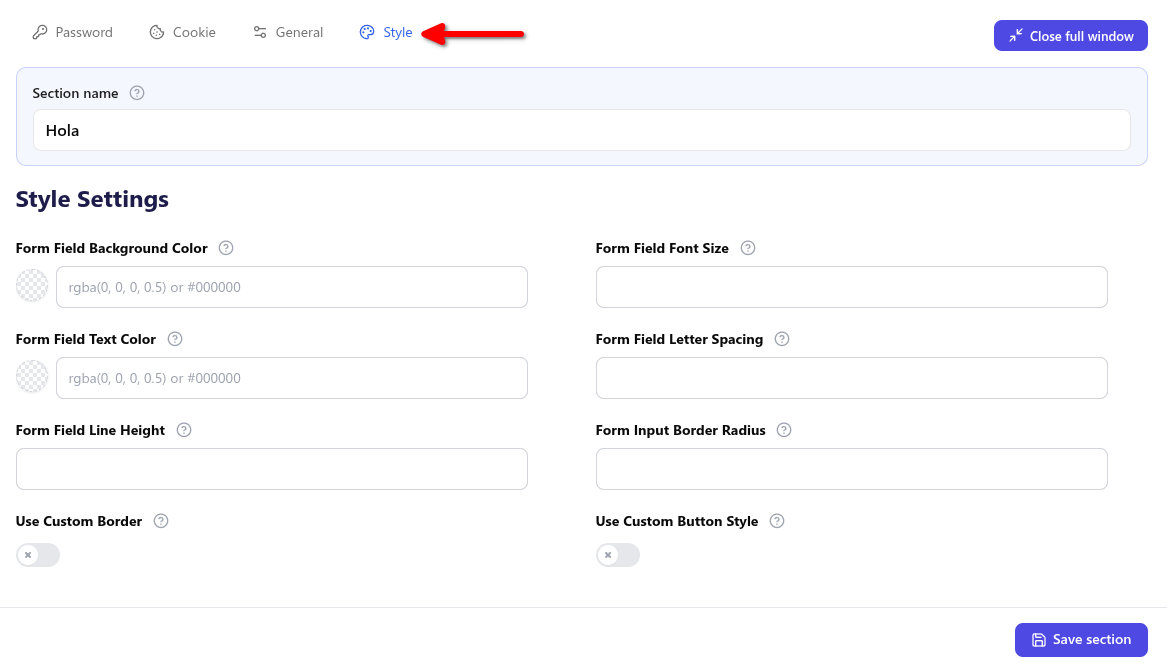
Open Protect Section Settings on the edit screen. The tabs are Password, Cookie, General, and Style. Open full window expands the settings when you want more room.
Settings
- Protect Section settings — Every field on the four tabs, plus the optional Membership plan box.
Who can see the content
Visitors who enter a correct password see the layout. You can also let people through without a password:
- Logged-in Users Bypass on the General tab shows the layout to anyone who is logged in.
- Unlock for these roles limits that skip to the roles you choose. Leave it empty to keep the logged-in setting as it is.
- Membership plan, shown when Divi Membership is active, lets members of one plan view the section without the password.
Cookie Duration controls how long a successful password is remembered in the browser. Some browsers and privacy tools block cookies, so a visitor may need to enter the password again.
Redirect URL sends the visitor to another address after a successful password. Scroll to Section moves the page to this section after unlock.
Divi Nitro
When Divi Nitro page cache is active, Divi Protect registers its unlock cookies so Nitro does not serve a locked page to someone who has already unlocked it, or an unlocked page to someone who has not.
Styling the form
- Use the Style tab on the Protect Section for field and button styles that travel with the section, including when you place it with a shortcode.
- Use the module Design tab when the section is placed with the Divi Protect module. See Divi Protect on Divi 5.