Protect Section settings
Where to edit
- Go to Divi Engine → Protect Sections and open a section.
- Use Protect Section Settings.
- Choose Password, Cookie, General, or Style.
- Click Open full window when you want the settings in a larger view.
- Save the section.
For a strong password, you can use the Divi Engine password generator.
Password
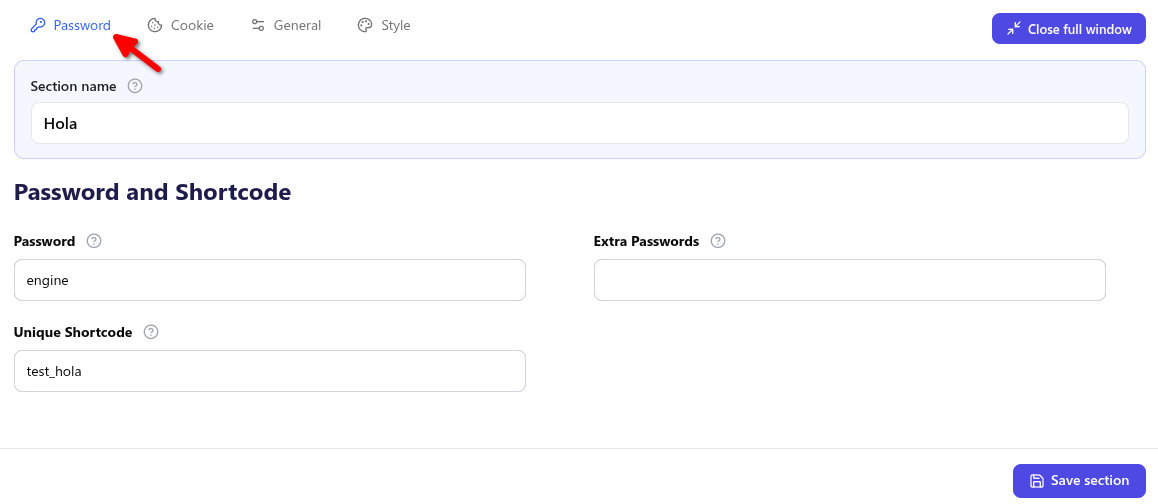
| Setting | What it does |
|---|---|
| Password | The password for this section. |
| Extra Passwords | Optional extra passwords, separated by commas. Example: password2,password3. |
| Unique Shortcode | A name without square brackets. Letters, numbers, dashes, and underscores only. Used on the front end and as the cookie name. |
Place that name in brackets inside a Code module when you are not using the Divi Protect module. Example: [members_area].
Cookie
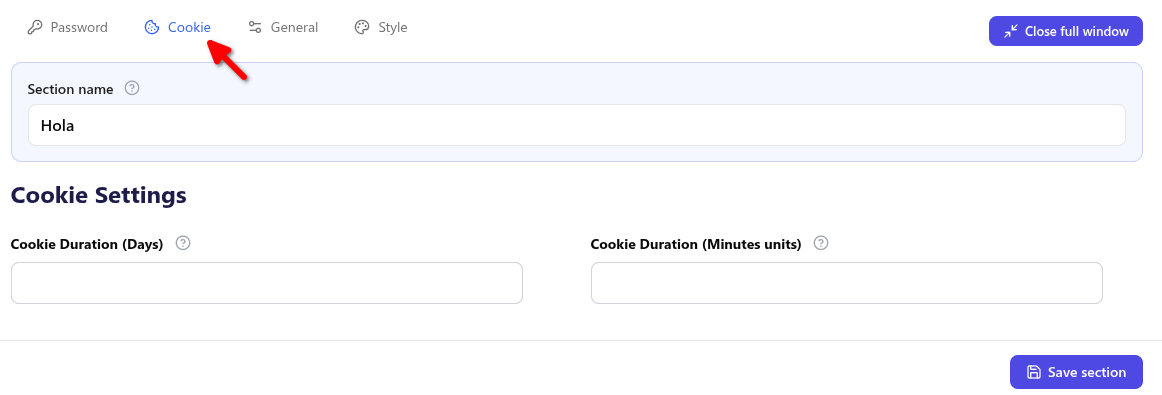
| Setting | What it does |
|---|---|
| Cookie Duration (Days) | Days to remember a successful password. Set to 0 to turn off day-based cookies. |
| Cookie Duration (Minutes units) | Leave 0 to use days. Each unit is 30 minutes. For example, 4 is 2 hours. |
Cookies may not be stored when the browser or a privacy tool blocks them. The visitor will see the password form again on the next visit.
General
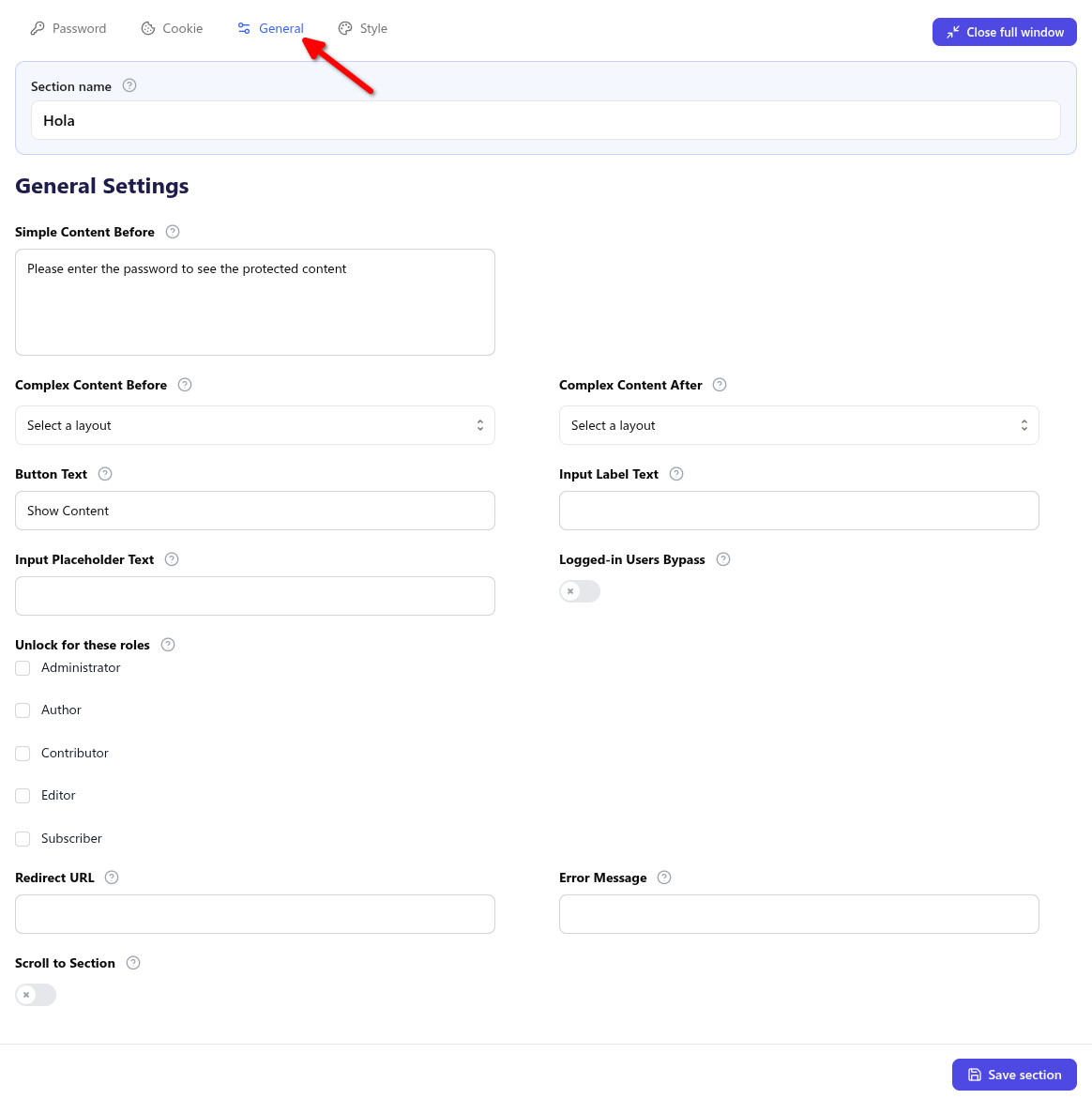
| Setting | What it does |
|---|---|
| Simple Content Before | Text or HTML shown before the password form. |
| Complex Content Before | A Divi Library layout shown before the password form. |
| Complex Content After | A Divi Library layout shown after a successful unlock. |
| Button Text | Submit button label. The default is Submit. |
| Input Label Text | Label above the password field. |
| Input Placeholder Text | Placeholder inside the password field. |
| Logged-in Users Bypass | Logged-in visitors see the protected content without a password. |
| Unlock for these roles | Leave empty to keep the logged-in setting above. Choose roles when only those roles should skip the password. |
| Redirect URL | Optional address to open after a successful password. |
| Error Message | Message shown when the password is incorrect. |
| Scroll to Section | After unlock, the page scrolls to this protected section. |
Complex Content Before and Complex Content After use layouts from the Divi Library. Build the layout in the library, then select it here. On Divi 5, those layouts keep their module styles, colours, icons, links, and interactions when they appear with the Protect Section.
Style
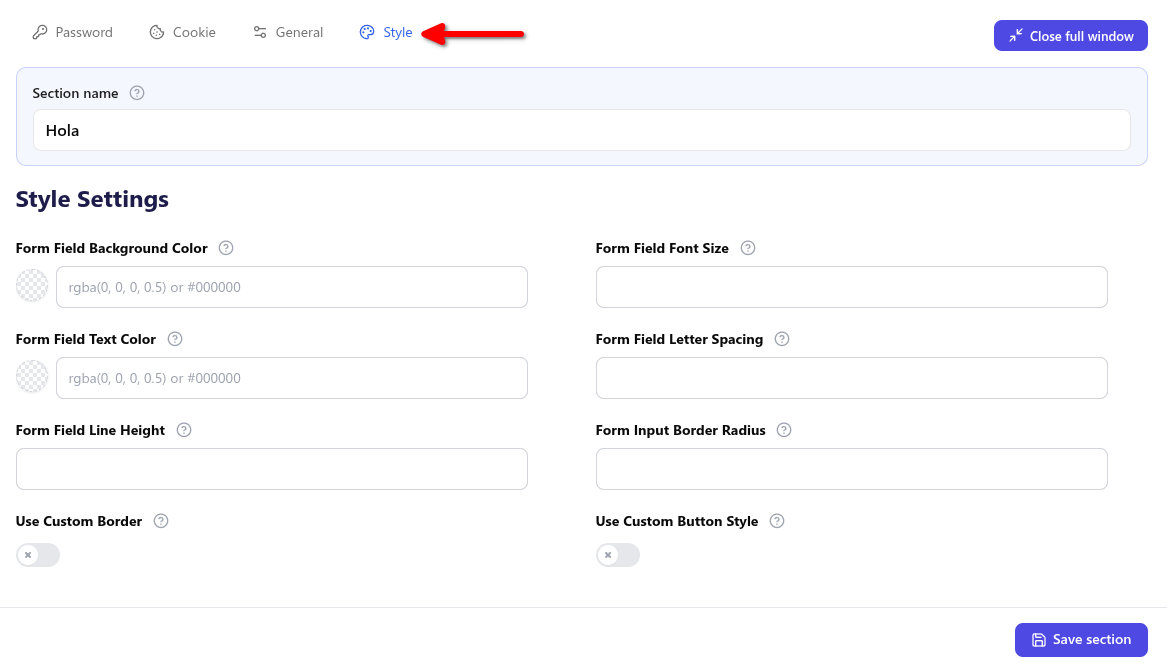
These styles apply to the password form from the Protect Section, including when the section is placed with its shortcode.
| Setting | What it does |
|---|---|
| Form Field Background Color | Background of the password input. |
| Form Field Font Size | Font size of the password input. |
| Form Field Text Color | Text colour of the password input. |
| Form Field Letter Spacing | Letter spacing of the password input. |
| Form Field Line Height | Line height of the password input. |
| Form Input Border Radius | Corner radius of the password input. |
| Use Custom Border | Turns on border colour, width, and style for the input. |
| Border Color | Border colour. Shown when Use Custom Border is on. |
| Border Width | Border width. Shown when Use Custom Border is on. |
| Border Style | CSS border style, such as solid or dashed. Shown when Use Custom Border is on. |
| Use Custom Button Style | Turns on custom styles for the submit button. |
| Button Text Size | Font size of the submit button. |
| Button Text Color | Text colour of the submit button. |
| Button Background Color | Background of the submit button. |
| Button Border Width | Border width of the submit button. |
| Button Border Color | Border colour of the submit button. |
| Button Border Radius | Corner radius of the submit button. |
Button text size, colours, and border fields appear when Use Custom Button Style is on.
When the section is placed with the Divi Protect module, you can also style the title, field, error, and button from the module Design tab. See Divi Protect on Divi 5.
Membership plan
When Divi Membership is active, the Protect Section edit screen includes a Membership plan box.
Members of the selected plan can view the section without entering the password. Choose No plan when membership should not unlock this section.
What's next
- Quick start — Create a section and place the module.
- Divi Protect module — Choose the section on a page and style the form in the builder.
- Scroll after a successful password — Turn on Scroll to Section.