Quick start
This quick start uses the Divi 5 Visual Builder. The module is Divi Protect, in the Divi Protect folder. On Divi 4, use the same Protect Section and the Classic Builder module. See Divi Protect on Divi 4.
Goal
By the end of this guide you have one Protect Section, a password, and that section on a page. Logged-out visitors see the password form. The correct password reveals the layout you built.
What you need
- Divi Protect installed and your license entered. See Installation.
- A page you can edit in the Divi 5 Visual Builder.
Steps
Step 1: Create a Protect Section
- Go to Divi Engine → Protect Sections.
- Click Add New Password Protect.
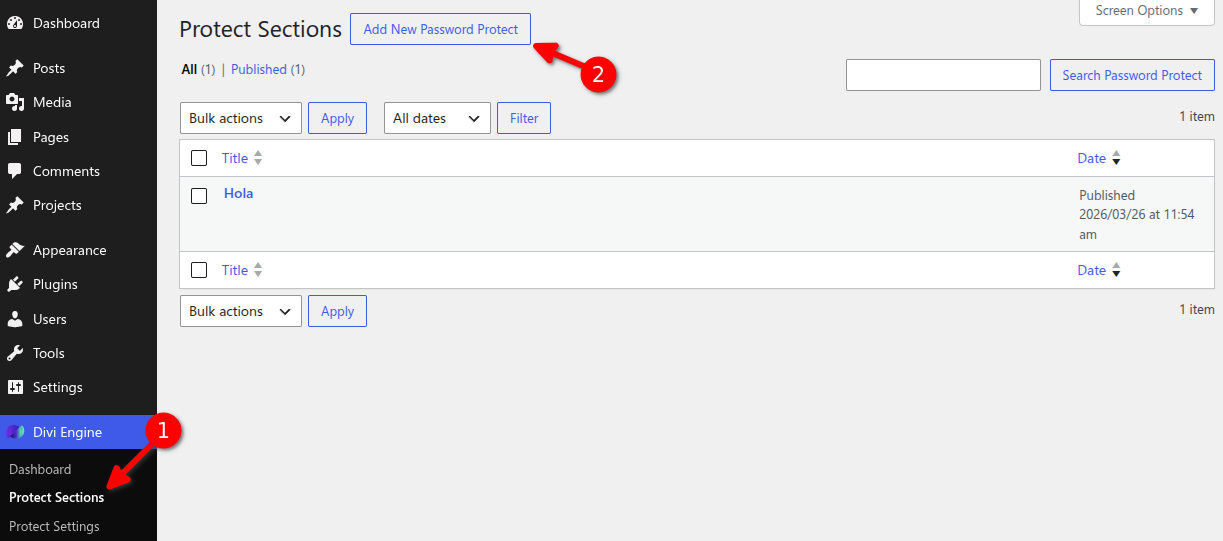
- Enter a section name, such as Members area.
You can also start from Divi Engine → Divi Protect and click Manage Protect Sections.
Step 2: Build the hidden layout
- On the Protect Section, choose Divi Editor.
- The builder opens for that section only, without the site header and footer.
- Add the sections, rows, and modules you want visitors to see after they enter the password.
- Save the layout.
Step 3: Set the password and shortcode
- In Protect Section Settings, open the Password tab.
- Use Open full window when you want more room. The tabs are Password, Cookie, General, and Style.
- Set Password.
- Set Unique Shortcode to a name made of letters, numbers, dashes, and underscores. Do not include square brackets. Example:
members_area. - Save the Protect Section.
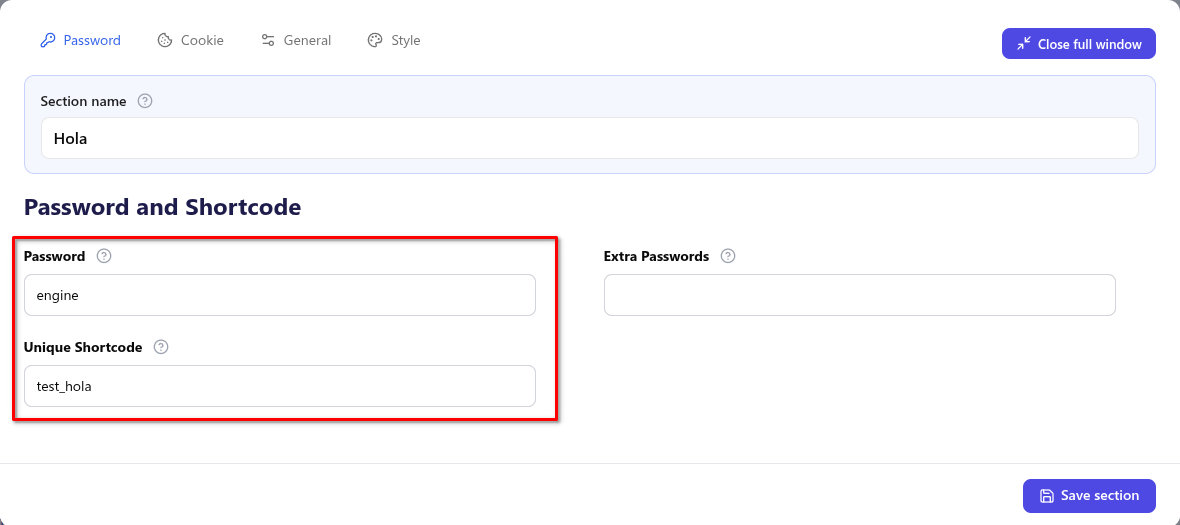
The shortcode is how you can place this section without the module, and it is also used as the cookie name. You can add more passwords under Extra Passwords, separated by commas.
Step 4: Place the module on a page
- Edit the page in the Divi 5 Visual Builder.
- Add a module and choose Divi Protect from the Divi Protect folder.
- Under Module Options, set Select your Protected Section to the section you just saved.
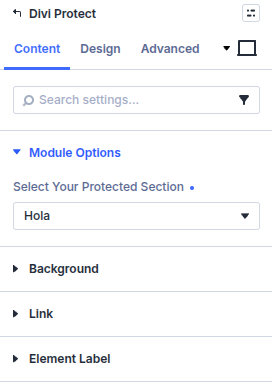
- Save the page.
To place the section with a shortcode instead, add a Code module and enter the shortcode in brackets, for example [members_area].
Step 5: Test the password
- View the page on the front end while logged out.
- Confirm the password form is shown and the hidden layout is not.
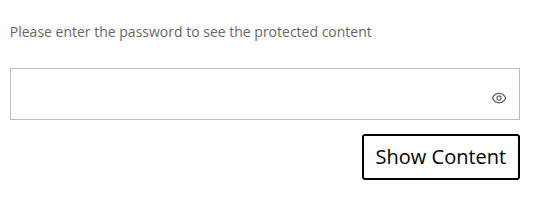
- Enter the password and submit.
- Confirm the Protect Section layout appears. The password field includes a control to show and hide the password.
Verify this stage
You are ready to continue when:
- The logged-out page shows the password form.
- The correct password reveals the layout you built in the Protect Section.
- An incorrect password shows your error message, once you set one under General.
What's next
- Protect Section settings — Cookies, labels, redirect, scroll, and form styles.
- Divi Protect module — Design tab styles for the form on the page.