Orderby
Orderby is a parent module. Add one Orderby Item child per sort option. Place it on the same page as an Archive Loop (or compatible Machine loop) so visitors can change sort order. Feature overview: Ajax sorting (Orderby).
Overview
The pattern:
- Orderby — container; sets location and design of the
<select> - Orderby Item — one child per option (date, title, relevance, or custom field)
How to use Orderby
- Add Orderby near your Archive Loop (or carousel that shares sort params).
- Set Orderby Location (left/right).
- Add at least two Orderby Item children with different sort types.
- For custom-field sorts, choose Custom field and set the field name/ID and numeric flag.
- Style the control under Orderby Design.
Parent: Orderby
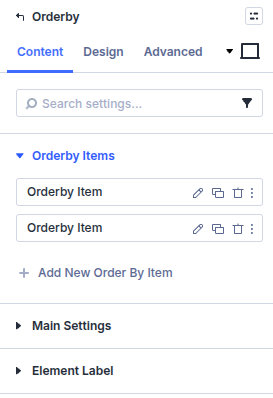
Orderby Items
Add and reorder Orderby Item children.
Main Settings
Orderby Location
Align the sort control Left or Right relative to the module wrapper. Keep the control on the same page structure as the loop it should affect.
Design
- Design → Orderby Design — Style the dropdown background, arrow color, Orderby Font, border, and box shadow.
- The child Orderby Item modules define option labels and sort behavior under Content; they do not have separate Design groups.
Standard module-level borders, shadows, spacing, filters, transforms, and animation remain available for the overall Orderby wrapper.
Child: Orderby Item
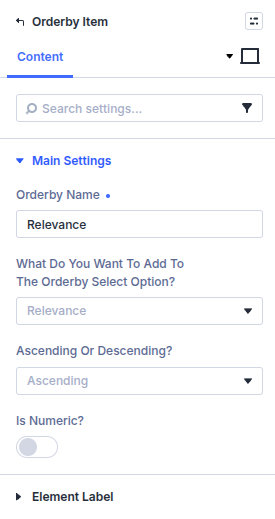
Orderby Name
Internal label in the builder. Visitors see the option text from the sort type you choose next.
What do you want to add to the orderby select option?
Post Title, Relevance, Custom field, or Date.
Custom Field Name / Custom Field ID
Shown when the sort type is Custom field. Pick the field used for ordering.
Ascending or Descending?
Ascending or Descending.
Is Numeric?
Enable when the custom field stores numbers so sorting is numeric rather than alphabetical.
Pitfalls and limits
- One Orderby Item alone is rarely useful—add multiple options.
- Custom field sorts require a consistent field type across posts.
- Pair with Archive Loop / filter pages that honor the same orderby query args.
What's Next
- Ajax sorting (Orderby) — Feature guide
- Archive Loop — Results loop
- Search Posts — Search UI
- Module overview — All Machine modules